Apple Contacts shows one card at a time. That is the right design for looking someone up. It becomes slow when the job is to check which contacts have an old company name, which have no phone number, or which email domain appears most often.
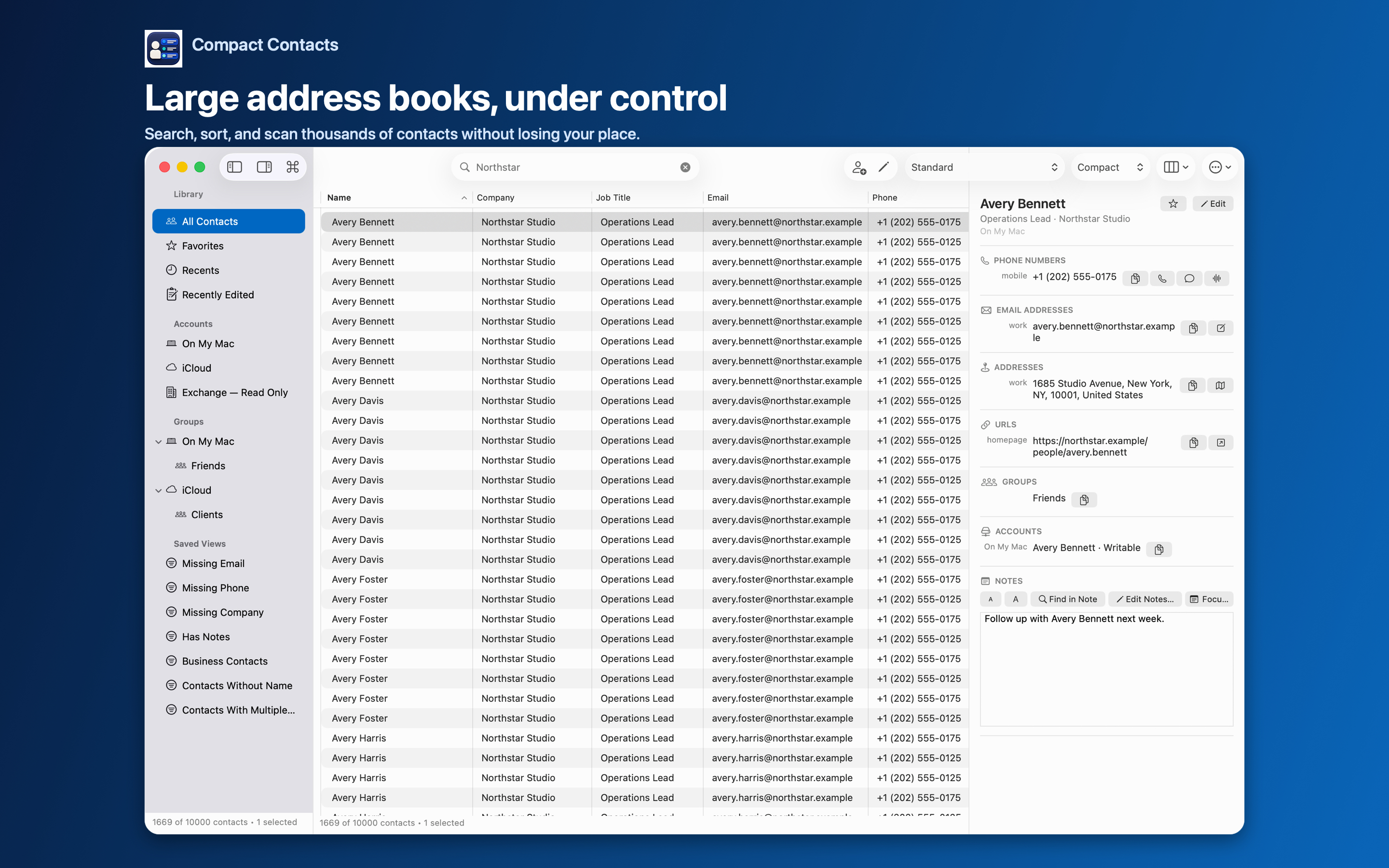
A table puts the same field for many contacts in one column. Differences become visible at a glance, sorting groups similar values together, and the selected card still opens in a separate Inspector.
Set up a table for one job
- Pick the columns. Start with Name, Company, Email, and Phone. Add Job Title, Department, City, Account, or Groups only when the task needs them.
- Sort by the field you are checking. Sorting by Company puts “Northstar Studio” and “Northstar Design” next to each other, which is how inconsistent spellings are spotted.
- Choose a density. Compact, Comfortable, and Large row densities trade rows on screen for readability. Compact suits auditing; Comfortable suits reading.
- Save the layout. Use Save Layout… to keep the column set, widths, density, and sort, and switch between saved layouts for different jobs.
Edit directly in the table when the change is small
Since version 1.4, supported cells in the Mac table can be edited in place. Return saves, Escape cancels, and Tab saves and moves to the next cell.
For the same change on many contacts, select the rows and use Bulk Edit instead. It shows a before-and-after preview and lists skipped read-only records.
Keep the detail one click away
Selecting a row fills the Inspector with the full card: every phone, email, address, relationship, and Notes. The Up and Down arrow keys move through contacts without leaving the keyboard.
Fit Width to Contents resizes a column to its longest value, which helps with long email addresses or company names.
Where a table is the wrong tool
- Reading one long note is easier in a focused detail panel.
- Adding a brand-new contact with many fields is easier in the full editor (Command-N).
- Account setup and sync belong in System Settings, not in a table.
Questions people ask
Does the table change how contacts are stored?
No. It reads the same system Contacts database as Apple Contacts. Columns, widths, and sorting are app preferences.
Can I show a specific label, such as Work Phone, as a column?
Yes. Labeled columns can show one labeled value, for example a work phone or a home email.
Is there a table on iPad?
Yes. The iPad app uses a table in landscape and a focused layout in portrait.