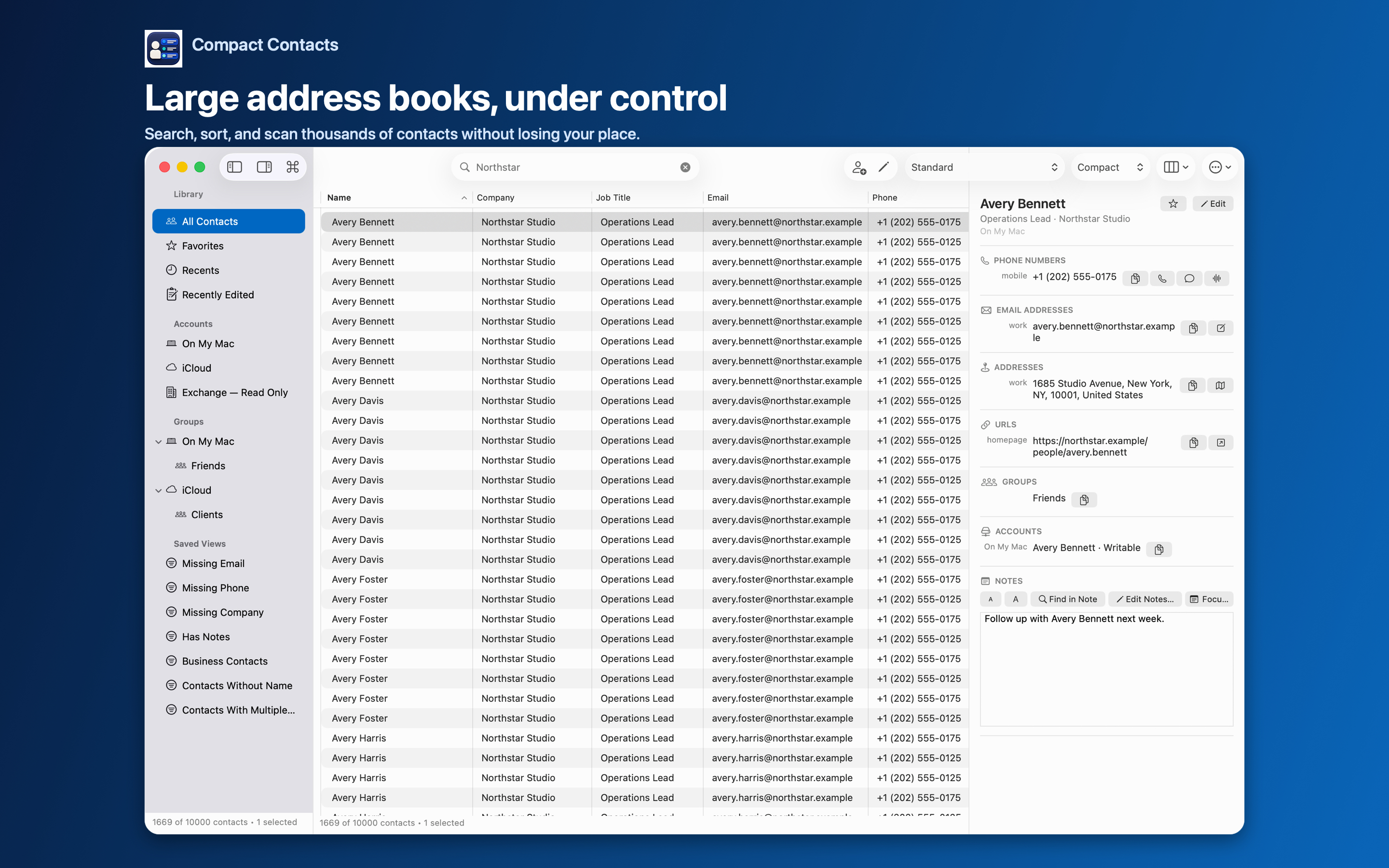
A table is only as useful as its columns. Too few and you open every card; too many and nothing is readable.
Compact Contacts groups available columns into Identity, Organization, Communication, and Addresses, plus labeled columns for one specific value.
Column sets by task
| Task | Columns |
|---|---|
| Company cleanup | Name, Company, Department, Job Title, Account |
| Outreach check | Name, Email, Phone, Company |
| Mailing list | Name, Street, City, State / Region, Country |
| Group audit | Name, Groups, Account |
| Relationship review | Name, Birthday, Dates, Relationships |
Labeled columns
A plain Phone column shows the first number. A labeled column shows one labeled value, such as Work Phone or Home Email, which is what you need when a card has several.
Fit Width to Contents resizes a column to its longest value.
Save and switch layouts
- Arrange columns. Add, remove, reorder, and resize.
- Save Layout…. Name it after the task, for example “Company cleanup”.
- Switch as needed. Rename Layout…, Update Layout, and Delete Layout manage the list. A Smart View can keep its own layout.
Questions people ask
Can I show Notes as a column?
Notes are shown in the Inspector, where long text is readable. Use a Has Notes Smart View to find contacts with notes.
Do columns change the export?
CSV export has its own field choice in Export Center.
Are layouts shared with iPad?
No. Each device keeps its own layouts.