
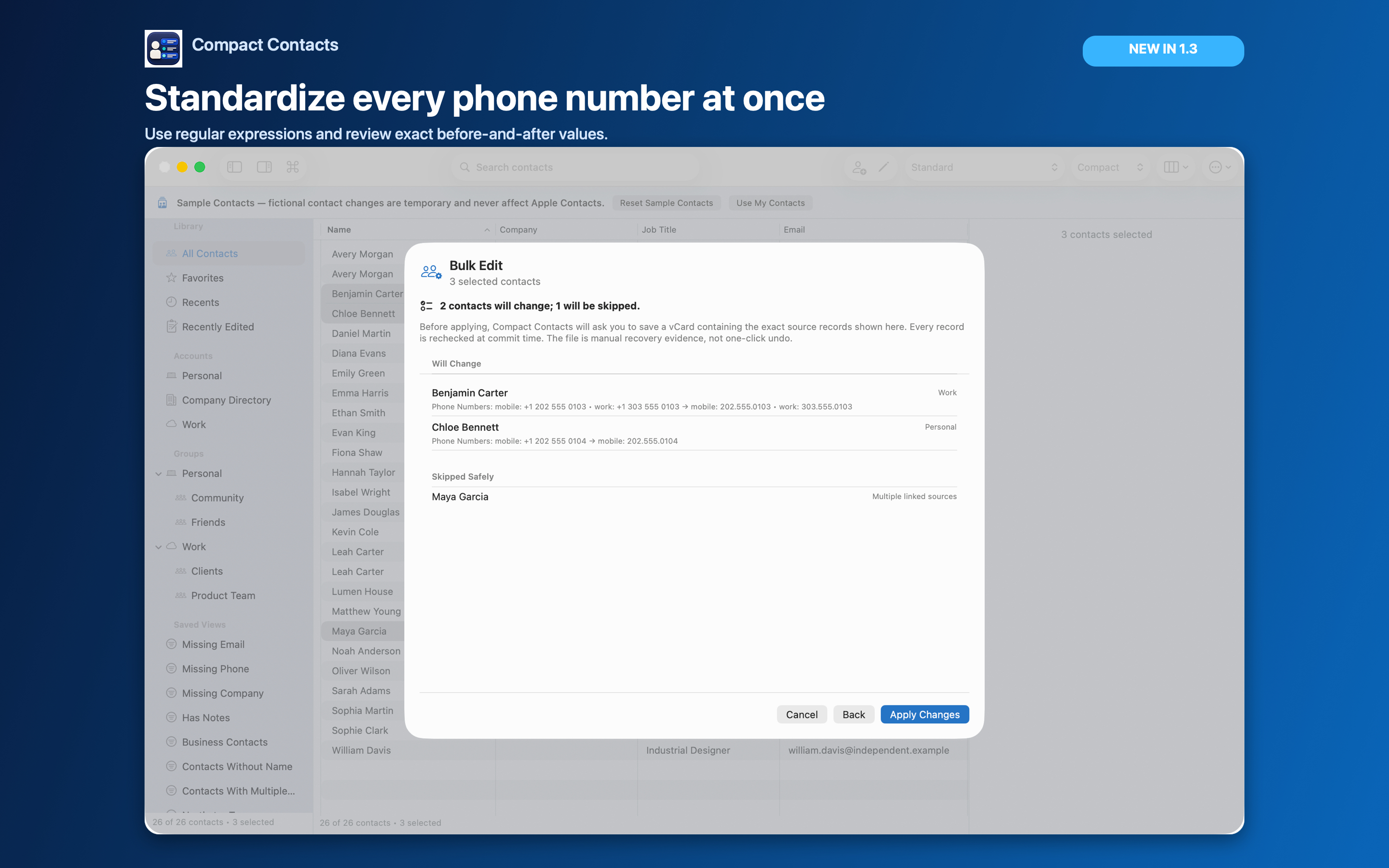
This example standardizes the Company field from “Northstar Studio” to “Northstar Design” for an explicit selection. The names are fictional. The workflow is designed for a deliberate batch update, not automatic cleanup of the entire address book.
Back up important contacts first. The recovery copy required by Bulk Edit is useful evidence, but importing a vCard is a manual recovery step and may create duplicates. It is not one-click Undo.
Select the exact records
- Narrow the table. Search for the existing company or open an appropriate view. Display the company and account information so similarly named records can be distinguished.
- Select a small batch. Select the intended contacts in the table. Check the selection count. A filtered result and a selection are different scopes; do not assume every visible card is selected.
- Open Bulk Edit. Use the Bulk Edit action for the selection. Confirm the contacts you are about to review.
Set one field before adding more operations
- Choose Company and Set value. Enter Northstar Design as the intended value. Leave unrelated fields out of the operation.
- Choose Review Changes. Compare each old company value with the new value. Check both the changed count and the skipped count.
- Check exceptions. Read-only or otherwise ineligible records must not be treated as changed. If a preview contains the wrong people, return to the selection rather than applying it.
Important: An empty replacement can clear a field. Check the actual preview, not just the text box.
Save the recovery copy and apply
For real contacts, follow the recovery-copy step before confirming Apply Changes. Keep the file somewhere you can find it again; it contains contact information and should not be posted publicly.
The app rechecks records before saving. If a source changes or an operation fails, read the result and reload the affected records before deciding what to retry. A partial result must not be reported as a complete company-wide update.
Verify the outcome
- Reopen a changed card and confirm Company, account, and an unrelated field such as email.
- Check the skipped list separately; those records still need a decision.
- Search for the old company spelling to find remaining records, then determine whether they were outside the selection or intentionally unchanged.
- When synchronization matters, check the provider or another device separately after the local result is verified.
Remove repeated values in version 1.5
Compact Contacts 1.5 adds Remove duplicate values for emails, phone numbers, URLs, relationships, and postal addresses. It keeps the first entry of each value on a card and removes later repeats on that same card. Phone numbers are compared by their digits only, so 415-555-0100 and (415) 555 0100 count as the same number. A copy written with a country code, such as +1 415 555 0100, has different digits and is kept.
Turn on Treat different labels as duplicates only when a work and a home entry with the same value really are one entry. The preview lists every removal before anything is saved.
Use a separate pass for phone formatting
Do not combine a company rename with an untested phone-number transformation. Phone formats depend on country and numbering plan; one expression is not a universal cleanup rule.
Questions people ask
Does Bulk Edit change every contact in a filtered view?
The operation uses the selected contacts. Always check the selection and preview counts rather than inferring scope from the visible table.
Can it update a read-only company directory?
No. Contacts permission does not override provider write restrictions. Check the skipped records.
Is the recovery vCard automatic Undo?
No. It is a manual recovery copy. Importing it can create duplicates, so inspect the current records before attempting recovery.