The Contacts app on iPad shares one contact at a time. Sending a whole project team or a school class means a lot of tapping.
Compact Contacts Manager exports any set of contacts as one vCard file, after a preview.
Export step by step
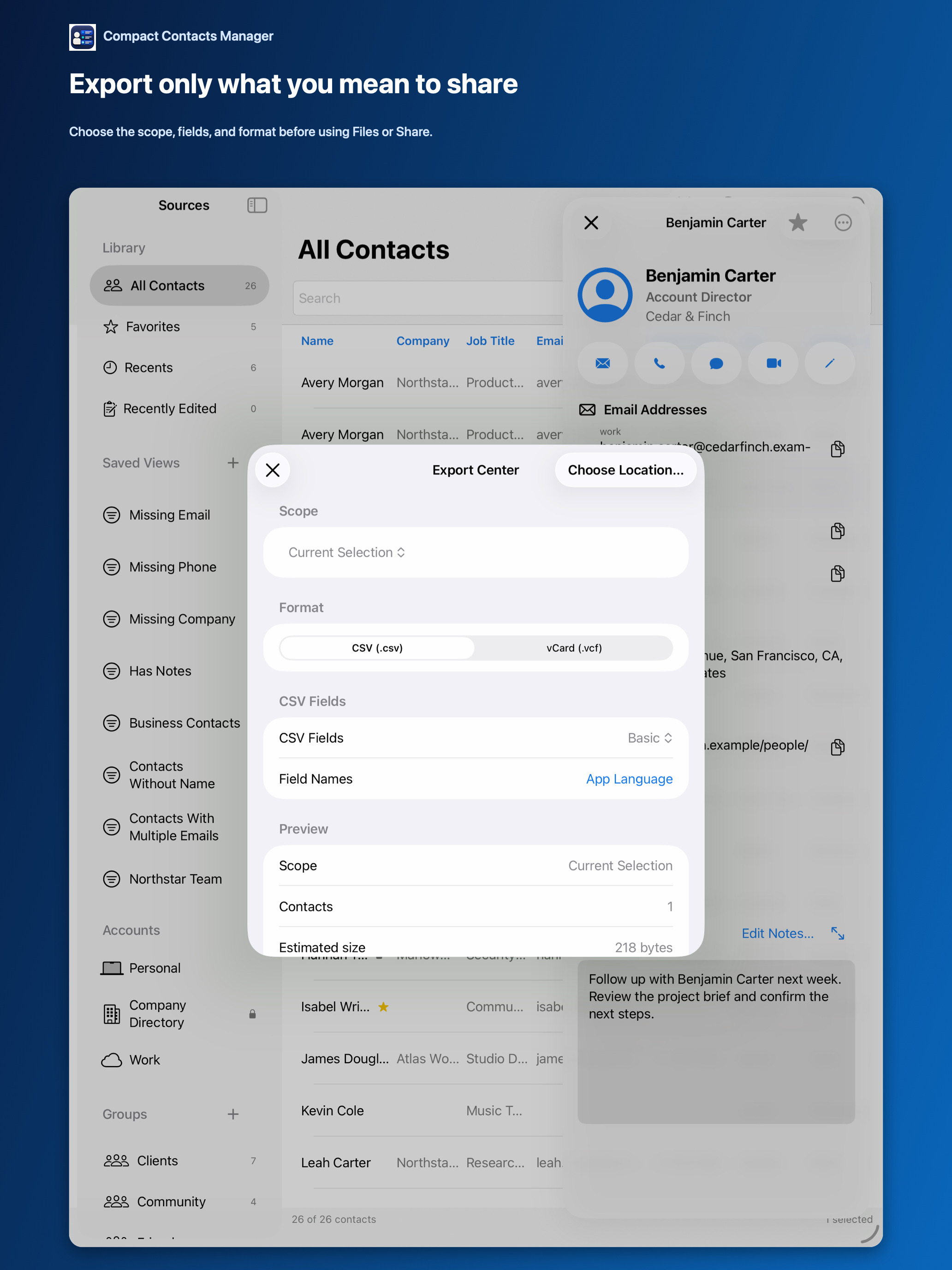
- Open Export Center. From the toolbar or the Command Palette (Command-K › Open Export Center).
- Choose the scope. All Accessible Contacts, Current Selection, Current Search and Filters, a Smart View, a Group, or an Account.
- Choose vCard and review. Check the contact count and whether Notes are excluded.
- Save or share. Save to Files, or share through AirDrop, Mail, or another app from the share sheet.
Keep private context private
Notes are excluded unless you turn on Include Contact Notes, which warns that Notes can contain private information.
Photos and internal identifiers are never included.
Check the file
- Open it in Files to preview the cards.
- Confirm the number of contacts.
- Delete temporary copies you no longer need.
Questions people ask
Can I export CSV on iPad?
Yes. Choose CSV in Export Center and pick the columns.
Does the recipient need Compact Contacts?
No. vCard is a standard format that Apple Contacts, Google Contacts, and Outlook can import.
Is anything uploaded?
No. The file is created on the iPad and goes only where you send it.