
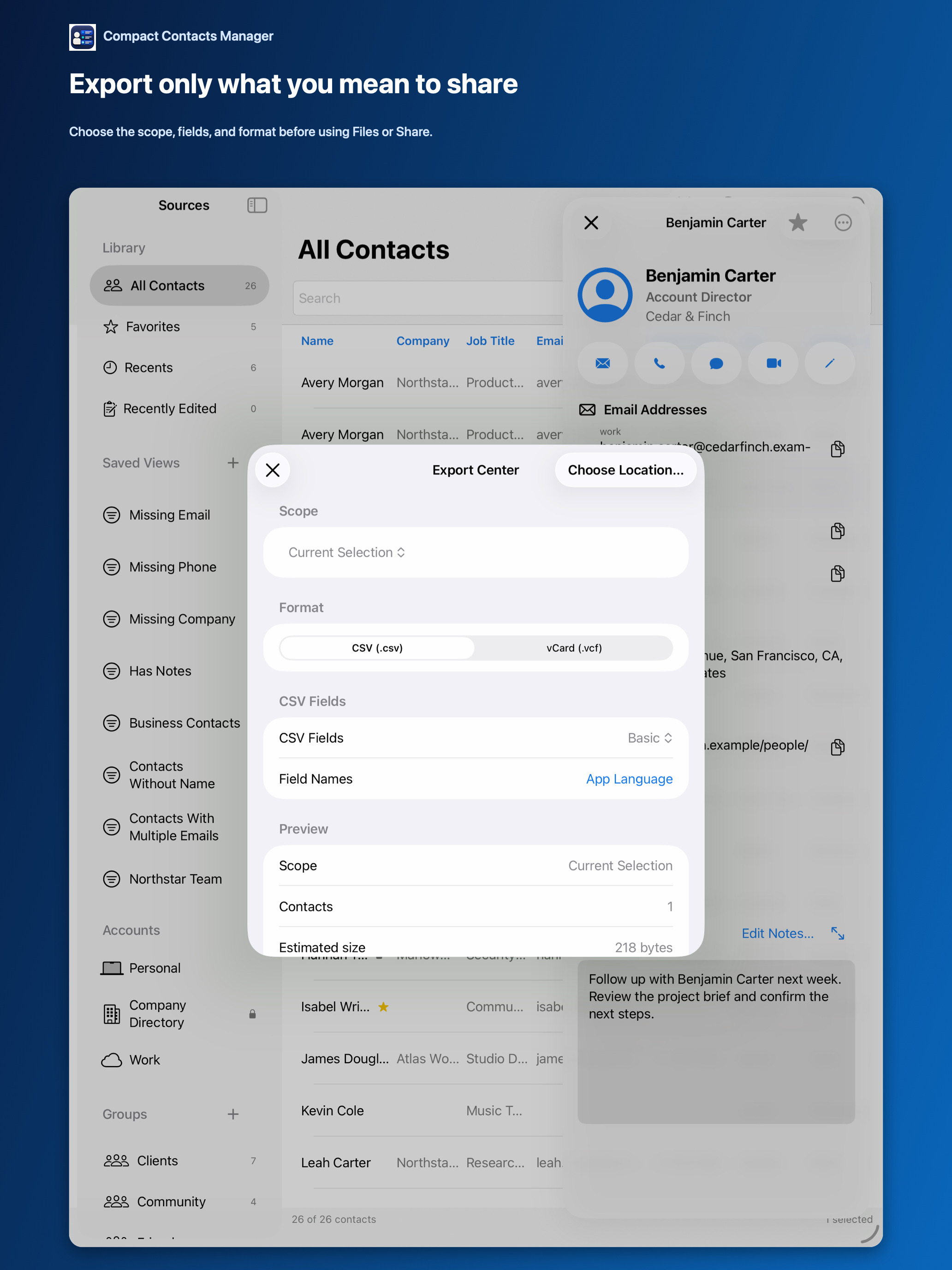
Sending a colleague “the Northstar team” or moving one project’s contacts to another device should not mean exporting your entire address book. A vCard (.vcf) file can hold many contacts, and the scope decides which ones.
Compact Contacts builds the file on your Mac after a preview. Nothing is uploaded; you choose where the file is saved and who receives it.
Export in four steps
- Open Export Center. Choose File › Export Center… or press Shift-Command-E.
- Choose the scope. Options include All Accessible Contacts, Current Selection, Current Search and Filters, a Smart View, a Group, or one Account.
- Choose vCard and review. The preview shows the number of contacts and an estimated size. Compare the count with what you expect before continuing.
- Save the file. Choose Location… and name the file. Contacts.vcf is the default name for more than one contact.
Notes stay out unless you include them
The preview states “Notes are excluded from this vCard handoff.” Turn on Include Contact Notes only for a recipient you trust; Notes often contain private context.
Photos, internal identifiers, and diagnostics are not part of the export.
If the contacts change mid-export
If a contact changes after the preview, Compact Contacts stops and asks you to review again. If the generated card count does not match the preview, no file is saved.
Both checks exist so the file contains exactly what you reviewed.
Verify before sending
- Quick Look the .vcf file in Finder and check a few names.
- Confirm the count matches the preview.
- Share through a channel you trust; a vCard is plain text.
Questions people ask
Can I export a Smart View directly?
Yes. Choose the Smart View as the scope, or use Export Smart View as vCard… from the view’s menu.
Will importing the file create duplicates on the other device?
It can, if the same people already exist there. The recipient’s app decides how to handle matches.
Is this available on iPad?
Yes. The iPad Export Center saves through Files or the share sheet.