Apple Contacts exports vCard, not CSV. When you need a spreadsheet for a mailing, an audit, or an accountant, you need a tool that writes columns.
Compact Contacts writes CSV locally with the columns you choose and a preview of the scope and size.
Export step by step
- Open Export Center. File › Export Center… or Shift-Command-E.
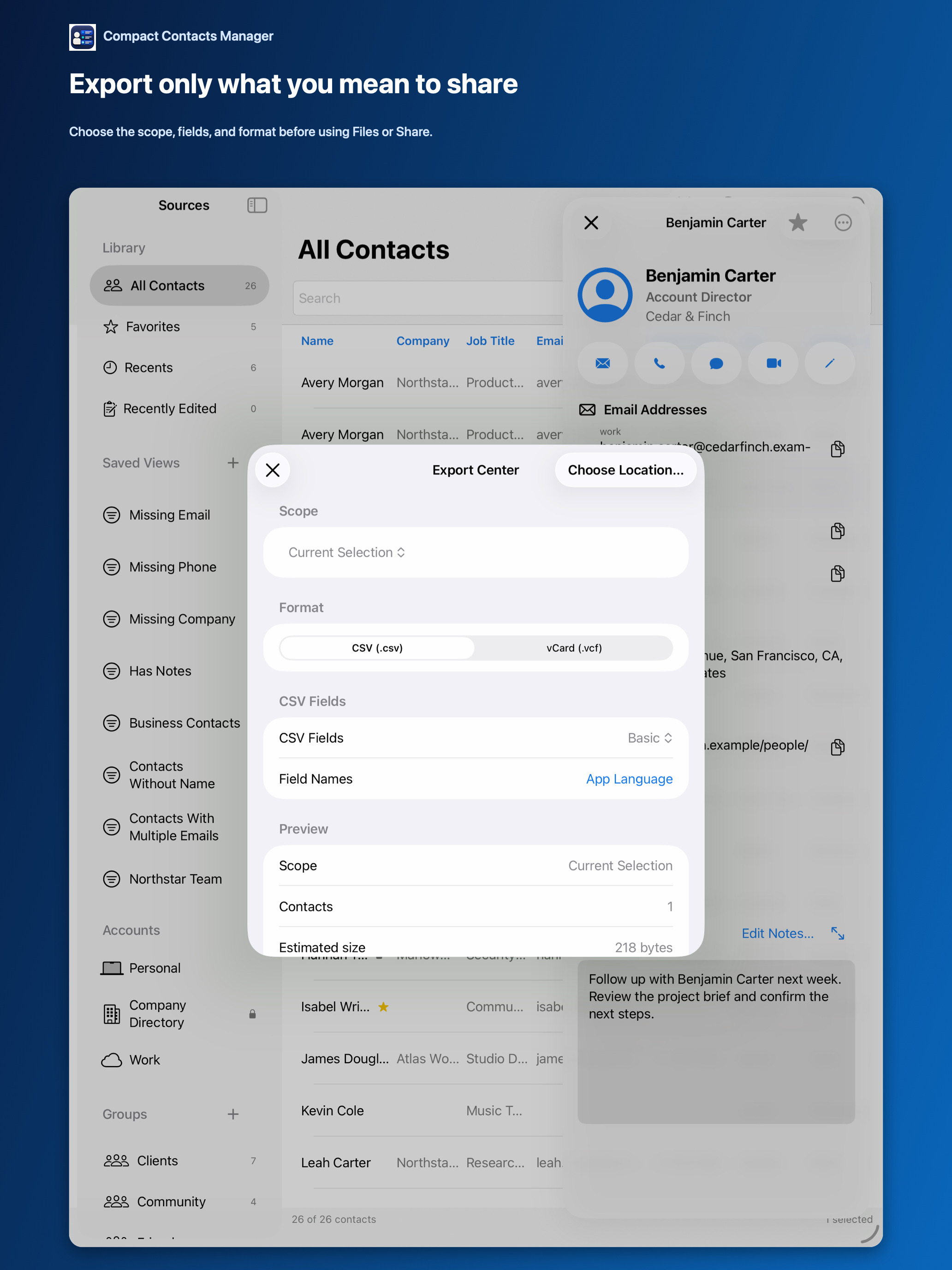
- Choose the scope. All Accessible Contacts, Current Selection, Current Search and Filters, a Smart View, a Group, or an Account.
- Choose CSV and fields. Templates: Basic, Business, All Supported, or Custom. In Custom, select fields and use the arrows to set column order.
- Choose header names. Field Names can be English or the app language. English headers are easier to map in other tools.
- Review and save. Check the contact count and estimated size, then choose Location….
Built-in protections
- Notes, photos, internal identifiers, and diagnostics are never included in CSV.
- Cells that a spreadsheet could interpret as formulas are made safe.
- If contacts change after the preview, the export stops and asks you to review again.
Important: A CSV file is readable by anyone who opens it. Store and share it like any other file with personal data.
Opening the file
Numbers and Excel open CSV directly. If accented characters look wrong in an older spreadsheet app, use its import command and choose UTF-8.
Keep the CSV as an output. To bring changes back into Contacts, edit the contacts themselves rather than re-importing a spreadsheet.
Questions people ask
Can I export contacts from one Smart View only?
Yes. Choose the Smart View as the scope.
Why are Notes not in the CSV?
Notes often contain private context, so CSV never includes them. Use a vCard with Include Contact Notes if a trusted recipient needs them.
Can I export CSV on iPad?
Yes. The iPad Export Center saves through Files or the share sheet.