
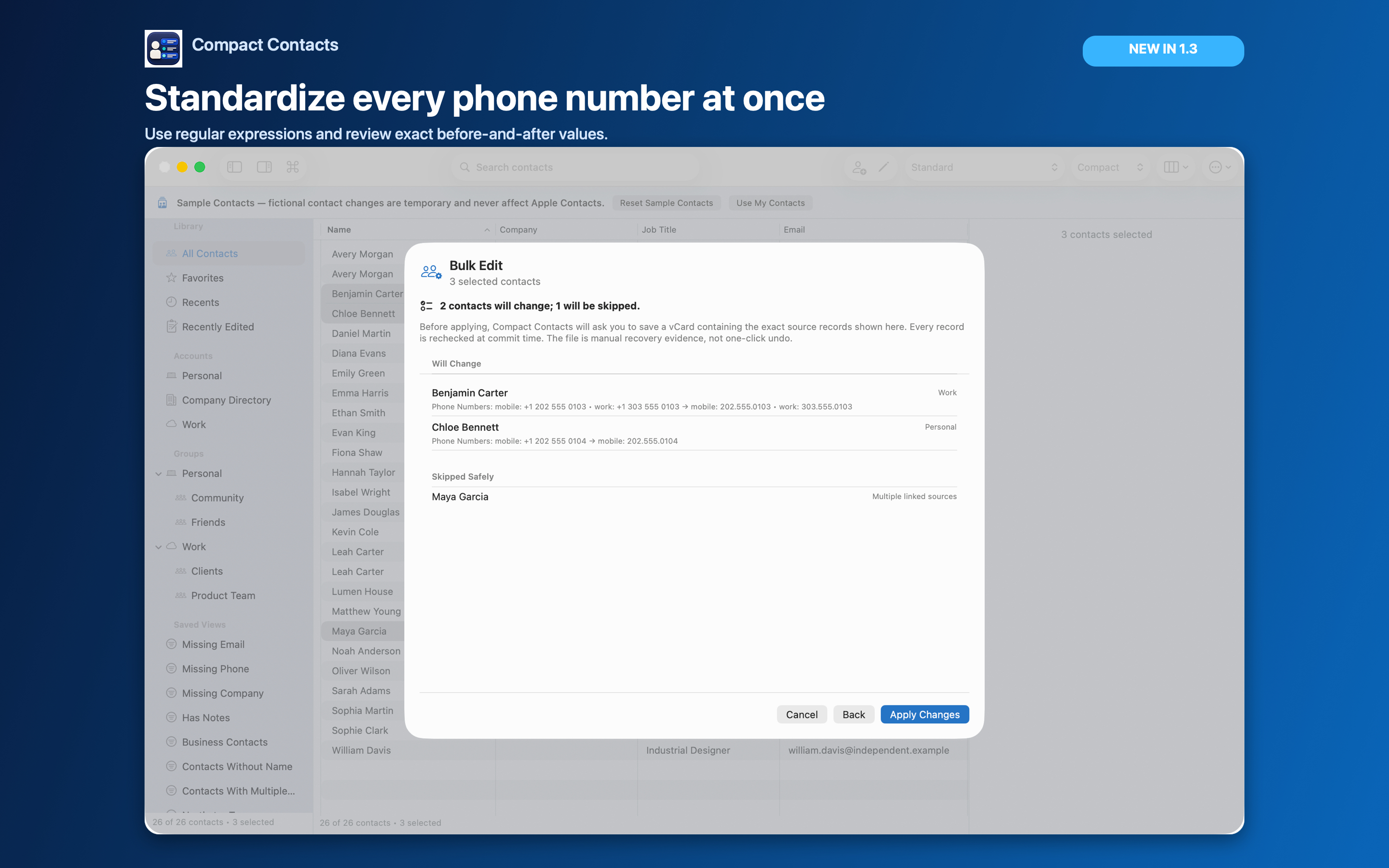
Imports and signatures produce job titles like “Sr. designer”, “Senior Designer”, and “senior designer ”. They make filtering and exporting unreliable.
Bulk Edit fixes them in a few passes, each with a before-and-after preview.
Useful operations for titles
| Problem | Operation |
|---|---|
| Trailing spaces | Trim whitespace |
| Mixed case | Capitalize words |
| Abbreviations such as “Sr.” | Find and replace “Sr.” with “Senior” |
| Many variants of one title | Set value on the selected cards |
| Pattern-based change | Find and replace with Regular expression |
A safe sequence
- Show the Job Title column. Sort by it so variants sit together.
- Select one variant group. Keep each pass small and readable.
- Apply one operation. Review Changes, check the skipped list, save the recovery vCard, apply.
- Repeat for the next variant. Re-sort and check that the variants have merged into one spelling.
Regular expressions, carefully
Regex is useful for patterns such as removing a trailing department in brackets. Compact Contacts blocks risky constructs such as lookarounds, backreferences, and nested quantifiers, and limits patterns to 256 characters.
Use $1, $2 in the replacement to reuse captured groups. Test on a small selection first.
Questions people ask
Can I change Department at the same time?
Bulk Edit can change several fields, but separate passes give clearer previews.
Does capitalization respect my language?
Capitalize words uses the system’s rules. Check names with special casing, such as Turkish İ, in the preview.
Is this available on iPad?
Yes, with the same operations and preview.