
When the duplicates in Contacts are obvious but View Duplicates never appears, the cause is usually one of a few specific situations. Merging rarely fails on its own; work out which situation you have before changing anything.
This guide covers the built-in Apple fixes first, then a review-first workflow for duplicates that do not share an exact name.
Back up first
Merging and deleting both change synced data. A mistake on your iPhone reaches your other devices after the account syncs.
- Export a copy. In Contacts, tap Lists, touch and hold All Contacts or another list, tap Export, choose the fields, and save the file to Files.
- Check the account copy. If your contacts are in Google, Google offers its own export as well.
- Keep the file private. An export contains everyone’s personal details.
Why View Duplicates is missing
| Situation | What is happening |
|---|---|
| The names differ | Apple offers a merge only when more than one card has the same first and last name. “Avery Morgan” and “Avery J. Morgan” do not qualify, even with the same phone number. |
| One account is showing | If Contacts shows a single account such as iCloud, duplicates in other accounts are not part of the view. Choose All Contacts in Lists. |
| The cards are linked | Cards for the same person in iCloud and Google or Exchange can be linked so the person appears once. Linked contacts are not merged; each card stays in its own account. |
| The copies live elsewhere | Copies often come from a Google or Exchange account added after a phone switch, or from a file imported twice. Merging on the iPhone does not change how another service stores its own records. |
| An account is turned off | Each non-iCloud account has its own Contacts switch. An account that is off does not show its contacts, so its duplicates are not visible. |
Merge cards with matching names in Apple Contacts
- Open All Contacts. Open Contacts, tap Lists, and choose All Contacts.
- Tap View Duplicates. It appears below My Card when cards with the same first and last name exist.
- Review or merge. Tap a person to review that group, or tap Merge All to merge every group. Reviewing one group at a time shows what will be combined before you confirm.
Link cards with different names
Linking hides the repetition on the iPhone but leaves both source records in place.
- Edit one card. Open one of the contacts and tap Edit.
- Link the other card. Tap Link Contacts, choose the other card, and tap Link.
- Choose the displayed name. Open a linked card, tap the name, and choose Use This Name For Unified Card.
Fix the copies where they live
- Google: open Google Contacts in a browser, choose Merge & fix, and review the suggestions. Google cannot merge contacts saved in different Google accounts. Changes reach the iPhone after Google syncs.
- Mac with iCloud Contacts: Apple recommends making a copy of your contacts, choosing Card › Look for Duplicates in Contacts, merging, and repeating until no duplicates are found.
- Google: merge duplicate contacts
- Apple: if you see duplicate contacts after setting up iCloud Contacts
A note on switching accounts off and on
Community threads suggest turning off Contacts for each non-iCloud account, refreshing, and turning the accounts back on so the iPhone re-evaluates duplicates. Apple documents the switch itself: turning Contacts off removes that account’s contacts from the iPhone while they remain in the online account. Apple does not document it as a duplicate fix.
Important: Do not choose Delete Account when you only mean to pause an account. Turning off iCloud Contacts asks whether to keep or delete the copies on the iPhone; leave iCloud on unless you understand that choice.
When names differ: review by email, phone, or company
Many real duplicates do not share an exact name. One card says “Dr. Avery Morgan” and has the mobile number; another says “Avery Morgan” and has the work email and a long note. The iPhone does not offer these, and Merge All would not reach them.
Compact Contacts Manager on iPhone works with the contacts already in Apple Contacts and asks you to review each group.
- Open the Clean Up tab. Tap Find Potential Duplicates…. The scan is read-only and can be cancelled. It groups cards that share an email address, a phone number compared by its digits, or the same name and company, ignoring letter case and accent marks.
- Read the reason. Each group says Same email, Same phone, or Same name and company. Email and phone matches are marked Strong match; a name-and-company match is marked Review. A match is a suggestion, not proof.
- Compare the cards. Check which account each card belongs to. If they are two different people, such as colleagues sharing an office number, keep both.
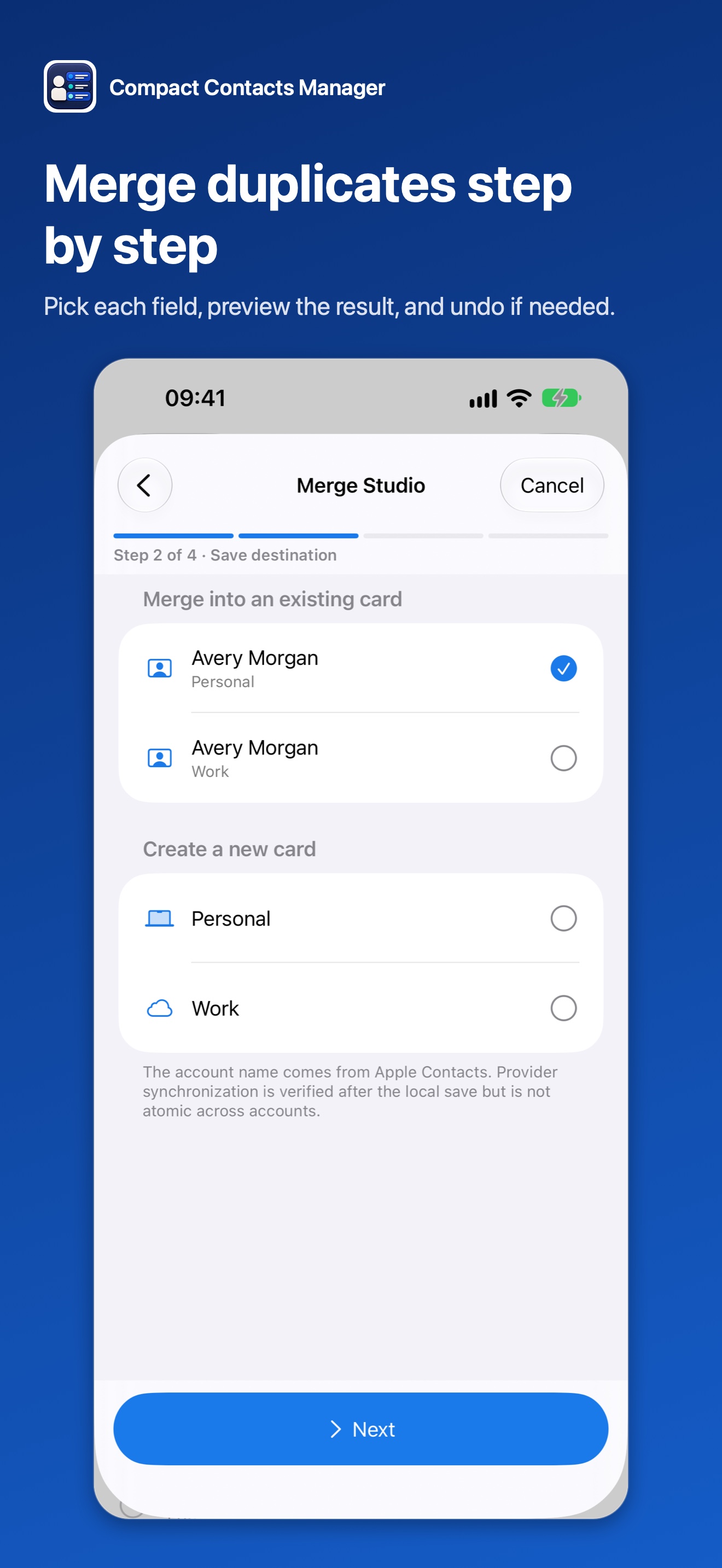
- Tap Merge Studio. On iPhone it runs as a four-step wizard: Cards, Save destination, Field sources, and Preview. Choose the source of each single-value field and use Combine unique values for phone numbers and email addresses.
- Tap Merge Contacts. The app creates a private recovery point, rechecks every source, verifies the destination, and only then removes the originals. If no recovery point can be created, nothing is changed.
- Undo if needed. Clean Up › Merge History lists eligible merges for 30 days, each with an Undo button.
Important: Undo stops if the merged card was changed afterwards, and a provider may normalize restored fields. It is a bounded recovery path, not a provider-wide rollback. There is no Merge All action.
Exact copies in one account
If every visible field and group membership is identical and the cards sit in one writable account, the group can offer Resolve Exact Copies…. It keeps one card and removes the others; it is not a merge and cannot be undone inside the app.
Before it is enabled, save the affected records as a vCard and select a full Contacts vCard export made within the last 24 hours. Suggested matches, cards in different accounts, linked or read-only cards, and cards with photos are not eligible.
After the cleanup
Open a few merged cards and check their fields and account. Give iCloud, Google, or Exchange time to sync, then check another device. If duplicates return, look for the source: an account added twice, a recurring import, or a second device pushing an old copy.
Questions people ask
Why does my iPhone say there are no duplicates when I can see them?
The built-in detection looks for cards with the same first and last name. Cards that differ in spelling, middle names, prefixes, or name order are not offered. They may also be linked cards from different accounts.
Does linking contacts delete the extra cards?
No. Linked cards stay in their original accounts. The iPhone only shows them together.
Is Merge All safe?
It combines every suggested group in one step. Back up first, and review groups individually when cards contain Notes or several numbers.
Can I undo a merge on iPhone?
Apple’s View Duplicates flow has no merge history. In Compact Contacts Manager, open Clean Up › Merge History and tap Undo next to an eligible merge from the last 30 days. Merges made in other apps are not covered.
My duplicates are in Google. Should I fix them on the iPhone?
Usually it is cleaner to fix them in Google Contacts with Merge & fix, then let the iPhone sync.
Will Compact Contacts match “Ayse” and “Ayşe”?
If both cards share an email or phone number, yes. Otherwise the name-and-company match ignores accent marks and letter case but needs the same company on both cards. The Turkish dotless ı is a separate letter, so for Yılmaz and Yilmaz a shared email or phone is the reliable match.