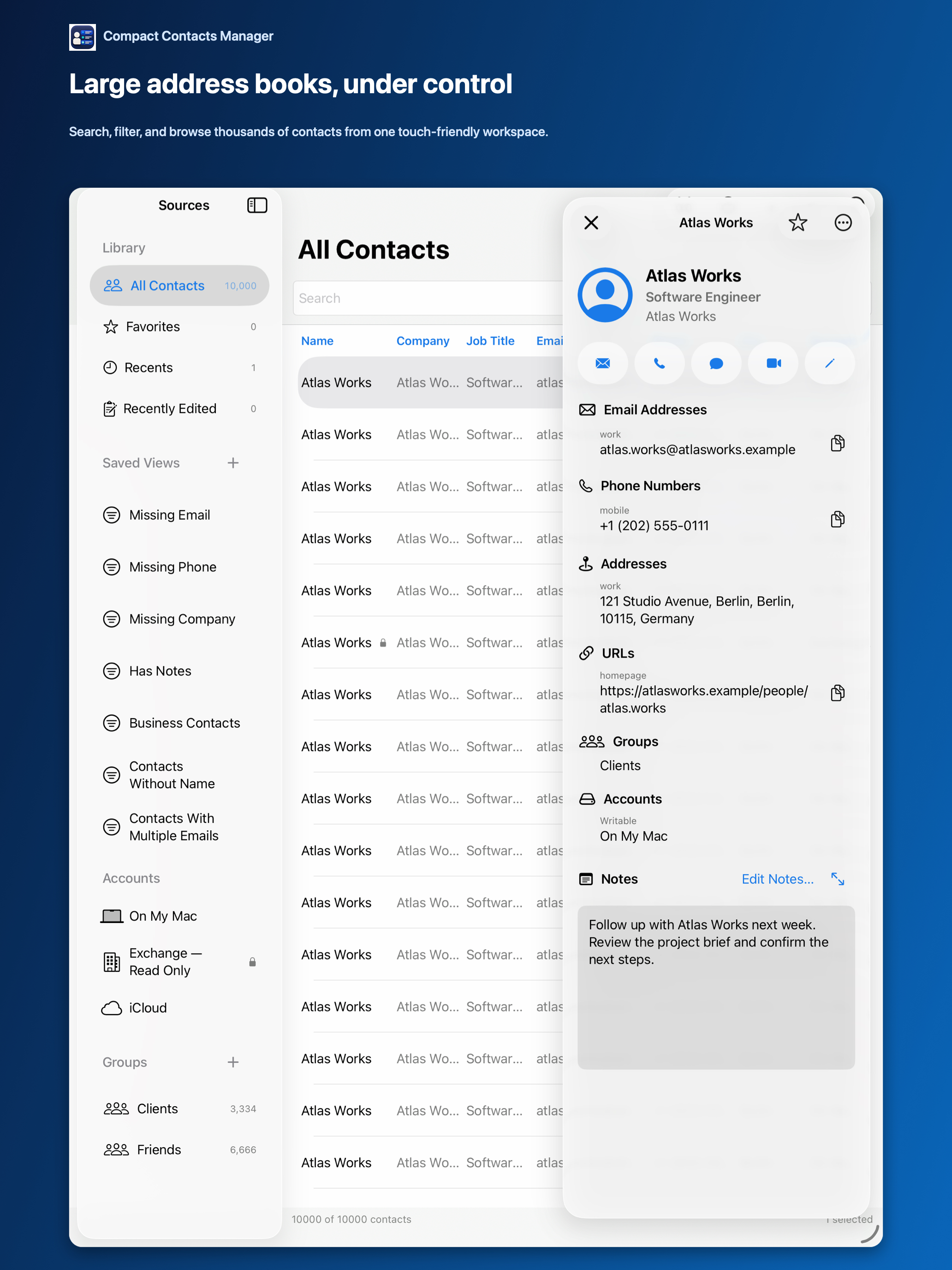
The Contacts app on iPad uses the same one-card-at-a-time design as on iPhone, with more white space. A larger screen can do more: compare company, job title, email, and phone for dozens of people at once.
Compact Contacts Manager for iPad adapts to orientation. Landscape favors a table; portrait favors a focused list and card.
Set up the landscape table
- Rotate to landscape. Or widen the window in Split View or Stage Manager. The table appears when there is room for columns.
- Choose columns. Pick the fields you are comparing. Fewer columns make each one readable.
- Sort and set density. Use the sort menu in the toolbar to pick a field and direction. Choose Compact, Comfortable, or Large rows; text also follows iPadOS Text Size.
Touch, keyboard, and pointer
Tap a row to open the card. With a keyboard attached, Command-K opens the Command Palette, Command-N creates a contact, Command-E edits, and Command-S saves.
A trackpad or mouse lets you select rows with Shift and Command as on a Mac, which is handy before a Bulk Edit.
Use version 1.5 additions
- Optional A–Z section headings when sorting by name.
- A custom icon for each Smart View.
- Search results grouped by the field that matched.
Questions people ask
Is this the same app as the Mac version?
No. Compact Contacts Manager for iPad is a separate App Store purchase with an interface built for iPad.
Does it work with contacts from Google or Exchange?
Yes, when those accounts are added in iPadOS Settings. Read-only accounts stay read-only.
What if I only allowed some contacts?
With limited access, only the contacts you allowed are visible. Change the selection in iPadOS Settings.