This walkthrough uses a Company rename, such as changing a selected team from “Northstar Studio” to “Northstar Design.” Start with a small selection so every previewed change can be read. The sample names are fictional.
Compact Contacts Manager for iPad works with contacts available through the system Contacts framework. A contact visible on screen may still be read-only, and a limited permission grant may expose only part of your address book.
Select a small, deliberate batch
- Narrow the contact list. Use search, a group, or a saved view to find the team. Landscape gives more room to compare the table columns.
- Select the intended rows. Use the table’s selection controls. Read the selected count and check the names and source accounts; a search result is not itself a selection.
- Open Bulk Edit. Open the Bulk Edit action for your selection. Choose Company and Set value, then enter the intended company name.
Read Review Changes before applying
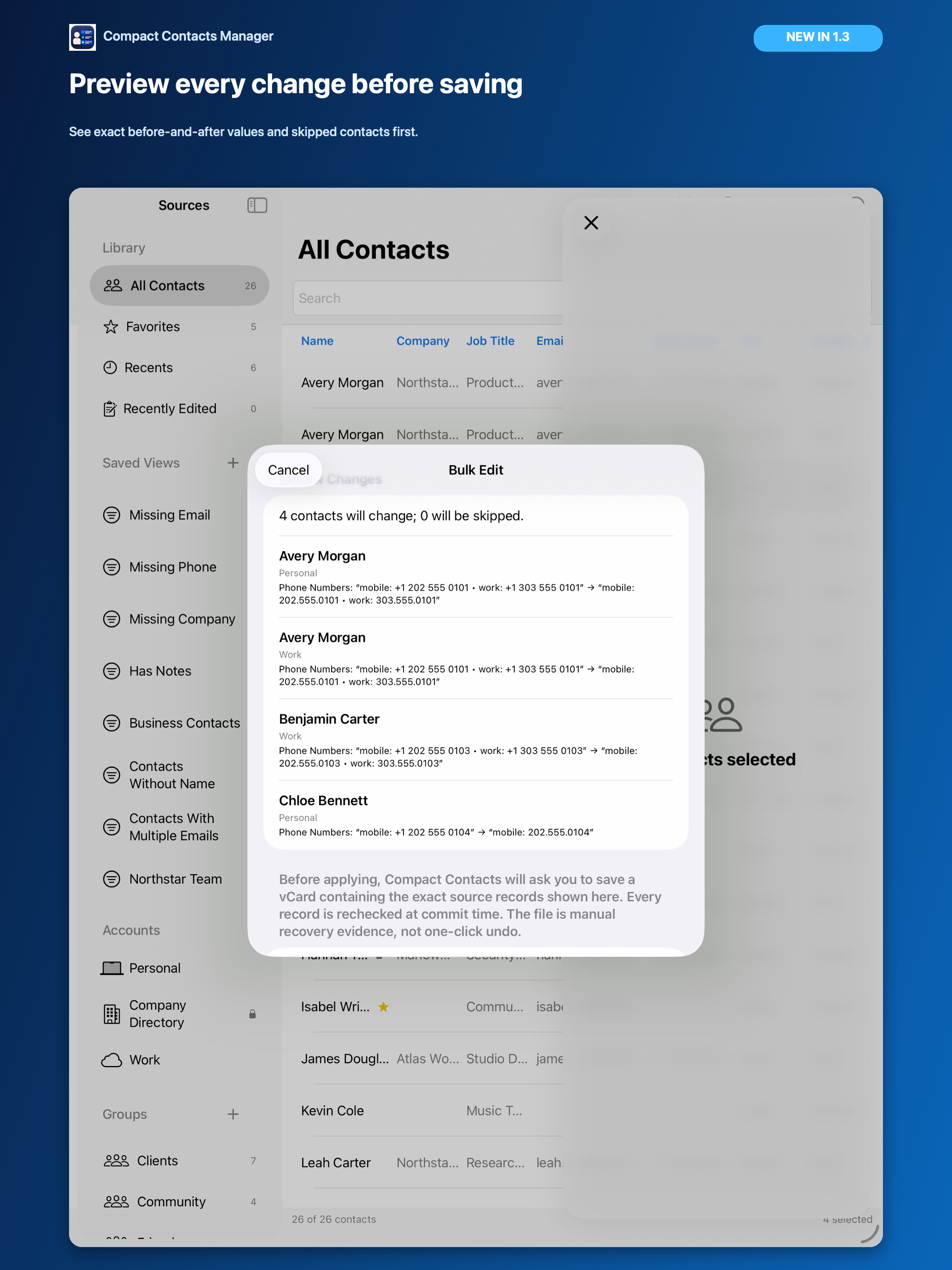
Choose Review Changes. The preview lists each eligible target with its account and old → new field values. Read the changed count and the skipped count separately.
An unchanged value may need no write; a read-only or otherwise ineligible target needs a separate decision. If the wrong contacts or fields appear, return to the draft and correct the scope. Do not use a blank value unless clearing the field is the intended result.
Save the recovery vCard
- Export the source records. For real contacts, use the recovery-copy step and save the .vcf through the file exporter to a location you control.
- Complete the confirmation. After a successful recovery export, confirm Apply Changes only if the preview remains correct. Cancelling the exporter is not a completed recovery step.
- Read the result. The app rechecks targets before writing. If a record changed or a save failed, inspect the result before retrying.
Important: The recovery file contains contact data. It supports manual recovery, not automatic Undo; importing it can create duplicates.
Verify before starting another batch
- Reopen a changed card and check the new Company value and owning account.
- Confirm unrelated phone numbers and email addresses still look right.
- Review skipped contacts individually rather than counting them as successful changes.
- Check the configured provider or another device separately if you need to confirm synchronization.
Explore without changing real contacts
The Sample Contacts workspace uses fictional in-memory records. It is useful for learning selection and preview behavior. Its simplified recovery path is not evidence that a real-account operation will have the same permissions or synchronization result.
Questions people ask
Does this require a Mac?
The described selection, preview, recovery export, and apply workflow runs in Compact Contacts Manager on iPad.
Can I use the iPad app on an iPhone?
Yes. Since version 1.6, Compact Contacts Manager is one universal iPhone and iPad app, and one purchase covers both. On iPhone, Bulk Edit runs as a step-by-step wizard with the same preview and recovery copy; this guide describes the iPad layout.
Does a successful recovery export mean my contacts changed?
No. Export and apply are separate steps. Read the apply result and reopen the affected cards.