The Notes field belongs to a contact card. It is separate from the Apple Notes app. In Apple Contacts, select the card and use Edit to change its information, then Done to finish. If the difficulty is the space available for a long note, Compact Contacts provides a dedicated Notes view over the same system address book.
The steps below use Compact Contacts 1.4.1 on Mac. You can explore them without touching real contacts: open Settings, choose Privacy, then View Sample Contacts. Changes in that workspace are temporary.
Read a long note without the other fields in the way
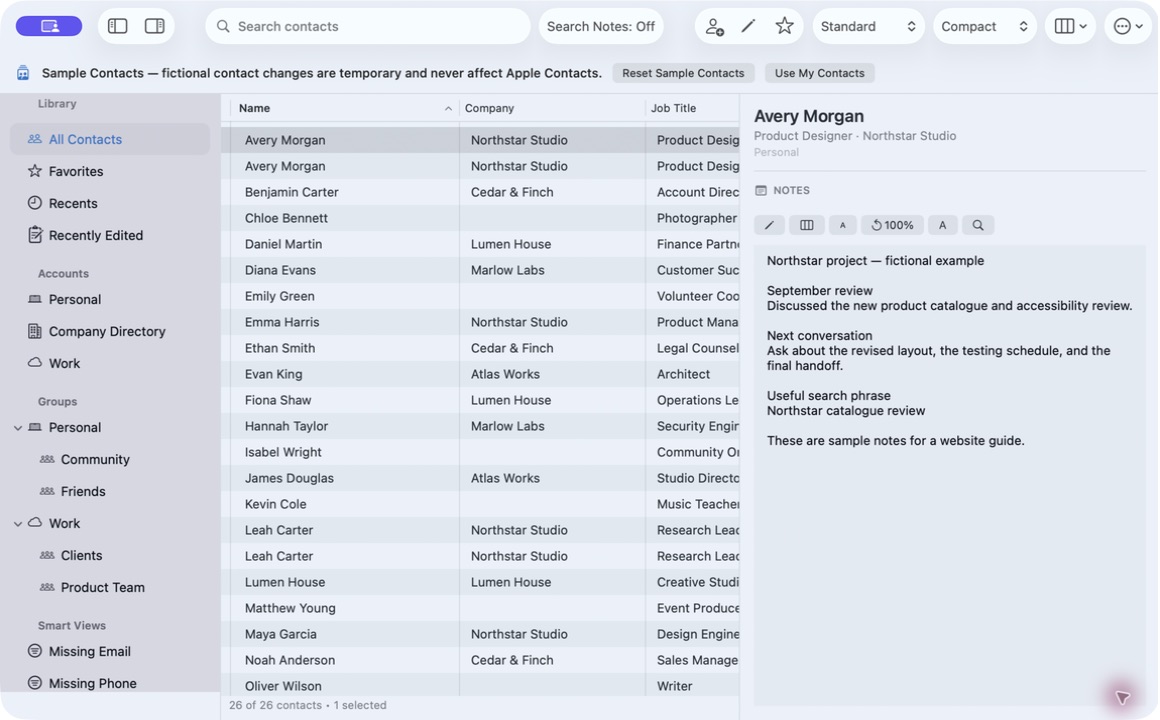
- Select the right card. Check its name and account in the Inspector. Two cards for the same person can belong to different accounts and contain different Notes.
- Choose Focus on Notes. Use the Notes toolbar button in the Inspector. The other detail sections make room for the note; the button changes to Show All Details so you can return.
- Adjust the reading area. Drag the divider between the contact table and Inspector. Use the smaller or larger text buttons to change the display size, or 100% to reset it. These controls do not rewrite the note.
Edit a note and check the saved result
- Open Edit Notes. Use the pencil button beside the Notes controls. Edit the text in the Notes editor, then choose Save. Choose Cancel to leave the existing text unchanged.
- Reopen the same card. Check a distinctive sentence and the account after saving. If the source is read-only or a save reports an error, resolve that condition before treating the edit as complete.
Search one note or the whole address book
Find in Note, in the Inspector toolbar, searches inside the open note. Search Notes, in the main window toolbar, includes accessible Notes in address-book search. These controls answer different questions.
To search across contacts, turn on Search Notes, let the Notes indexing progress finish, then enter a distinctive phrase in Search contacts. A missing result while indexing is still running is not proof that the note is absent. Turning Notes search off removes Notes from the optional in-memory index.
If a note is blank, missing, or cannot be edited
- Check the same card and account in Apple Contacts. Do not replace a blank field until you know whether you opened a second card for the same person.
- Check Compact Contacts access under System Settings → Privacy & Security → Contacts. The app can use only records and Notes made available by macOS and the provider.
- A Company Directory or another restricted source may be readable but not writable. Access permission does not override the account's write rules.
- If a save succeeds locally but another device has not updated, check the configured provider separately. Compact Contacts does not operate the sync service.
Questions people ask
Does Focus on Notes delete or hide stored contact fields?
No. It changes the Inspector layout. Show All Details restores the other sections.
Does Search Notes search the Apple Notes app?
No. It searches accessible Notes fields in contact cards, on this device.
Are these notes uploaded to Compact Contacts?
No. Contact processing and the optional Notes index stay on the device. Your configured contact provider may still synchronize the underlying cards.