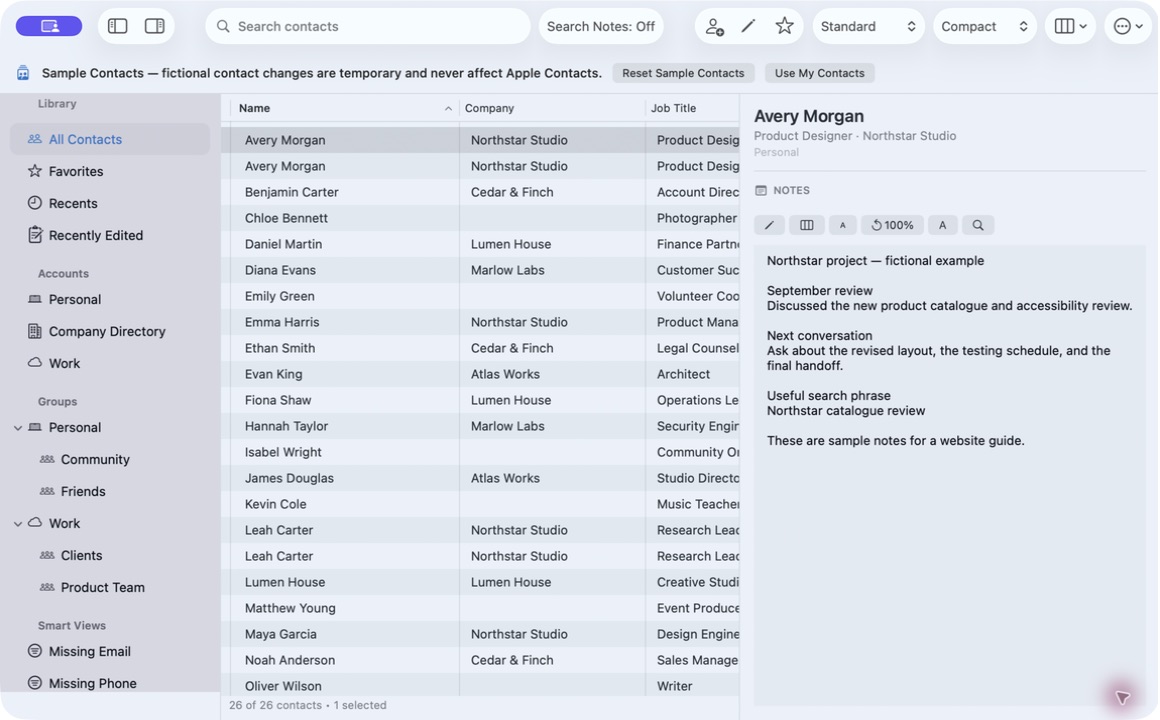
For a single short change, Apple Contacts lets you select a card, click Edit, update a field, and finish with Done. For several paragraphs of history, Compact Contacts has a Notes-only editor so phone, address, and account sections do not compete for writing space.
This workflow changes one selected card. It does not append the same text to every contact or move Notes into a separate app.
Before editing: identify the exact source
Select the contact and read its account in the Inspector. Matching names do not guarantee matching records. If Personal and Work each contain a card for Avery Morgan, decide which card should hold the new note before opening the editor.
For substantial replacements, keep a recoverable copy first. A vCard export should be checked for Notes explicitly; Compact Contacts excludes Notes from vCard by default and does not include them in CSV.
Open the Notes editor
- Focus the Inspector. Choose Focus on Notes if the existing text is cramped. This only changes the layout.
- Choose Edit Notes. Click the Notes pencil button. Confirm the contact name in the editor before typing or pasting.
- Make one deliberate change. For example, append a dated paragraph below the existing history. Keep earlier context unless you intend to remove it.
- Save or cancel. Choose Save to write the supported edit, or Cancel to discard the draft. Do not treat an error message as a successful save.
Verify more than the first line
After saving, reopen the contact and check the beginning, the changed paragraph, and the end of the note. For a long paste, checking only the first sentence can miss an incomplete replacement.
Find in Note searches the open note. To locate this text later across cards, enable Search Notes in the main toolbar, wait for indexing, and search for a distinctive phrase.
If the edit cannot be saved
Check the account's write permission and whether the record changed elsewhere. Compact Contacts cannot make a managed directory writable. Verify the same source in Apple Contacts rather than repeatedly pasting the note into a different card.
A successful local save and a completed provider sync are separate checks. Reopen the record locally first; then verify on another device if that matters for your workflow.
Questions people ask
Can I enlarge text without changing the saved note?
Yes. The Inspector's text-size buttons and 100% reset affect reading size, not the stored content.
Will a CSV export preserve my long Notes?
No. Compact Contacts excludes Notes from CSV. For a supported vCard export, explicitly include Notes and inspect the exported file before relying on it.
Can I practice before editing real contacts?
Yes. Settings → Privacy → View Sample Contacts opens fictional records. Changes there are temporary and do not affect Apple Contacts.