
Someone sends you a .vcf file with a team’s contacts. Opening it on the iPhone adds the cards to your default account, and you find out afterwards what was inside.
Compact Contacts Manager reads the file first, lets you choose the account, and shows every card before it is written.
Import step by step
- Save the file to Files. From Mail or Messages, save the attachment to Files or iCloud Drive first. The app picks the file from there.
- Tap Import vCard…. It is in the Clean Up tab under Import & Export.
- Choose the account. Only writable accounts are listed, with your default account selected. The cards go into this one account.
- Choose the file. Tap Choose vCard File and pick the .vcf. The app reads it and reports how many cards it found.
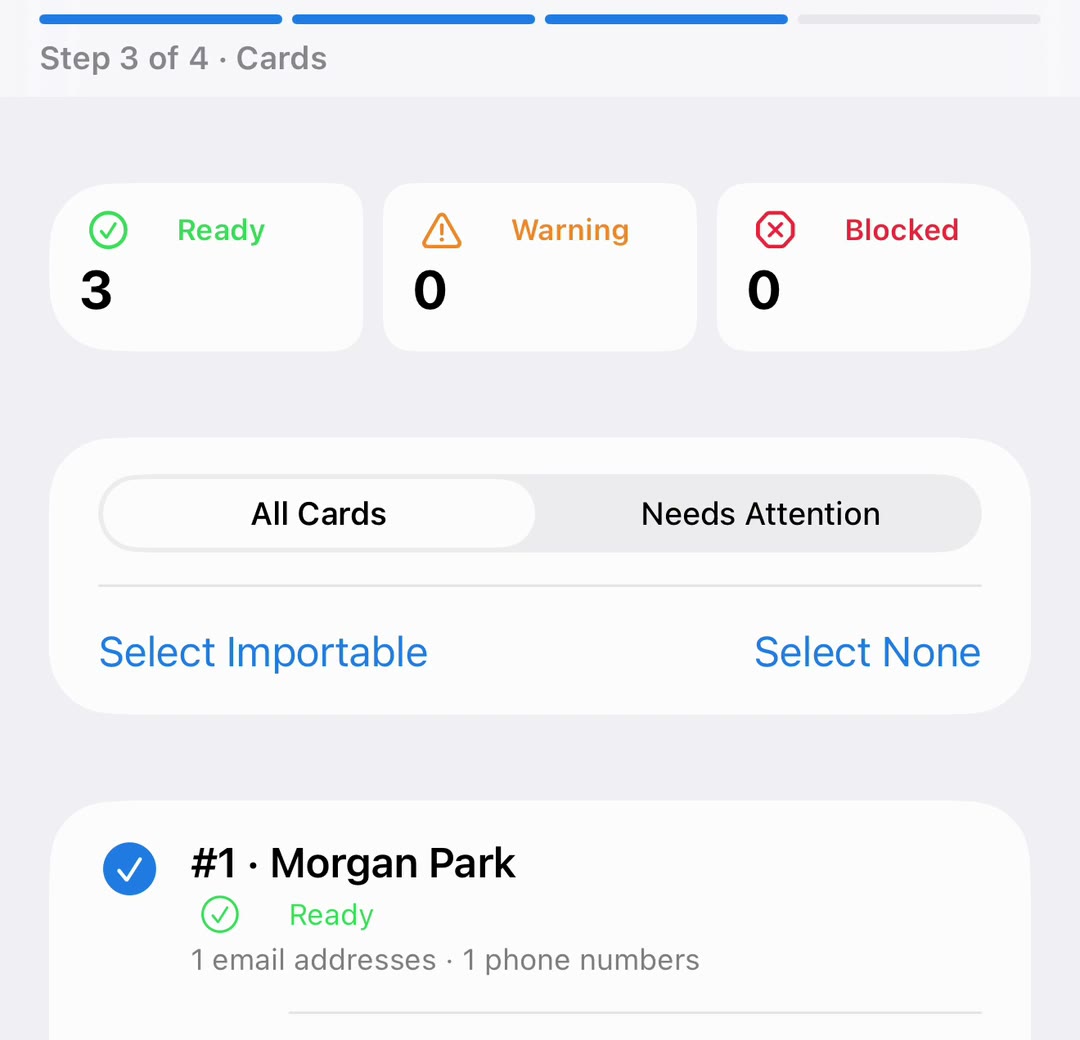
- Review and import. Every importable card starts selected. Untick the ones you do not want and tap Import.
What Ready, Warning, and Blocked mean
Switch Show to Needs Attention to see only the cards with a warning or a block. Each row shows the card’s name and how many email addresses and phone numbers it holds.
| Status | Reason |
|---|---|
| Ready | No issues found |
| Warning | A contact with the same email address or phone number may already exist; or some fields are not supported and will be left out |
| Blocked | The card cannot be read, is missing its END:VCARD marker, or has no usable fields |
The result
The last step counts Imported, Skipped, Failed, and Cancelled cards and gives a reason for each failure. Copy Redacted Report copies the summary without any names or contact details, which is useful when asking for help.
Important: There is no undo for an import. If you cancel, the app stops after the current card and the cards already imported stay in Contacts.
Possible duplicates
A warning about a matching email or phone does not stop the import, and nothing is merged automatically. Untick that card, or import it and review duplicates afterwards.
Questions people ask
Can I open a .vcf from Mail straight into the app?
Not in this version. Save the attachment to Files, then choose it from Import vCard….
How large can the file be?
Up to 25 MB.
Can I add the imported cards to a group?
Not during the import. Select them afterwards and use Add to Group or Bulk Edit.
Are Notes in the file imported?
Yes, when the app has access to contact Notes. Otherwise the card shows a warning and its Notes are left out.