
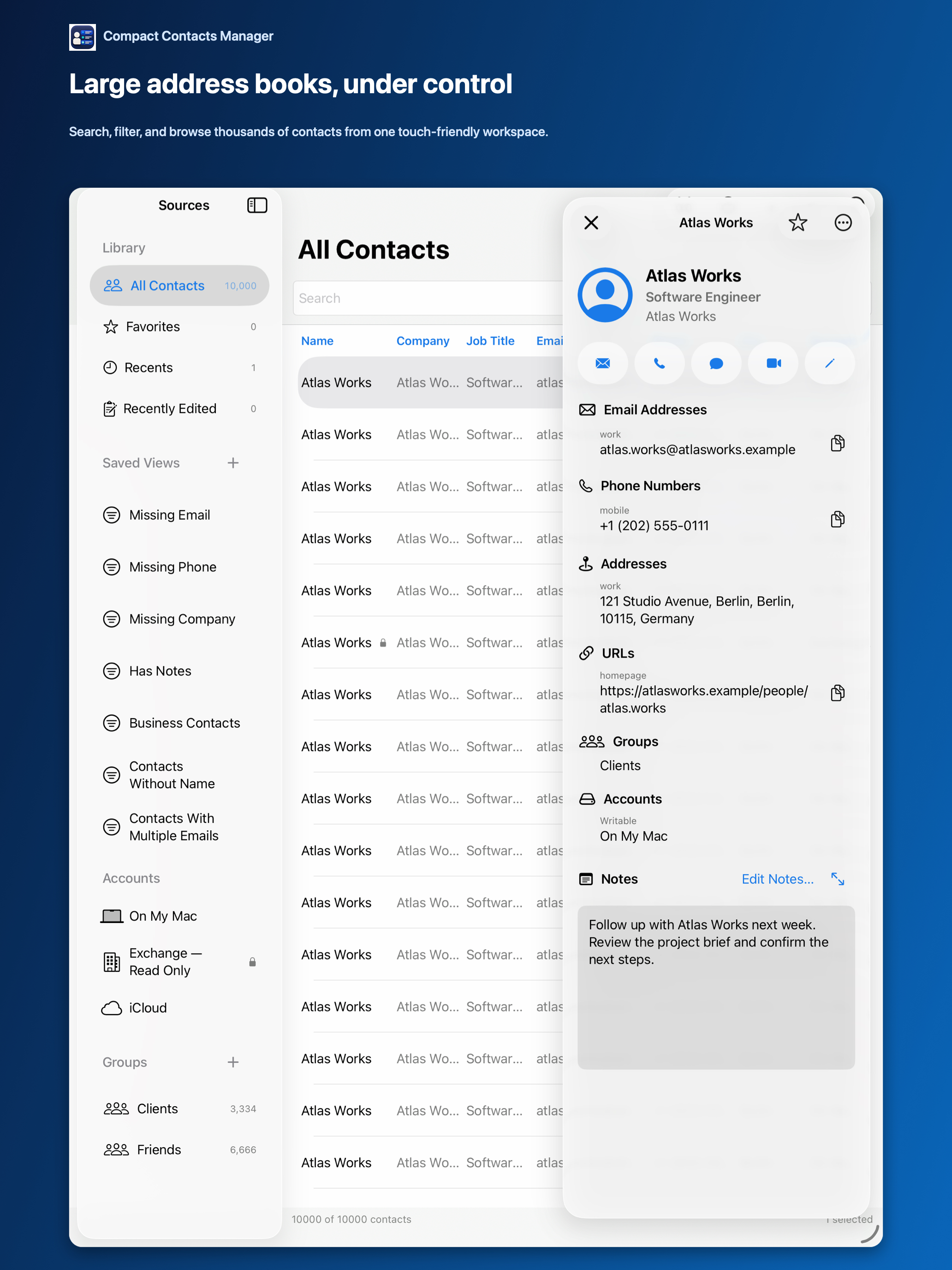
On iPad, the contact Notes field is often the only place a meeting summary or a client’s preferences are written down. In the standard Contacts app it is a small box at the bottom of a long card.
Compact Contacts Manager gives Notes a proper reading area and lets you search inside Notes across your whole address book.
Read comfortably
- Open the contact. In portrait, the card fills the screen; in landscape, it sits beside the table.
- Adjust Notes text size. Use the Notes font controls. Version 1.5 adds a reset to exactly 100%.
- Use your iPadOS text settings. The app follows iPadOS Text Size and accessibility settings.
Edit and save
Tap Edit (or Command-E with a keyboard), change the note, and save (Command-S). If the contact changed on another device while you were editing, you choose which version of each field to keep.
Some accounts provide Notes as read-only. The app shows the note but cannot save changes there.
Search inside Notes
Turn on Notes search in Settings. The index is built on the iPad, kept in memory, and cleared when you turn the option off.
In version 1.5, matching Notes are grouped under Results from Notes, separate from name and company matches.
Questions people ask
Why don’t I see Notes at all?
Notes needs Contacts permission and Apple’s managed Notes capability, which current App Store builds include. The account must also provide the field.
Are Notes included when I export?
Not in CSV. In vCard, only when you switch on Include Contact Notes.
Is this the Apple Notes app?
No. This is the Notes field on each contact card, separate from the Notes app.