
Apple’s Contacts app on iPhone edits one card at a time. That is fine until a client renames itself, a team moves to a new department, or a dozen cards have the same mislabeled number.
Bulk Edit in Compact Contacts Manager changes one or more fields across a selection and shows the exact result for every contact before anything is saved.
Select the contacts
- Narrow the list. Search for the company, open a group, or open a Smart View, so the list shows only the people you mean.
- Tap Select Contacts. Tap the cards to include, or Select All for every visible row. Bulk Edit needs at least two contacts.
- Tap Bulk Edit…. It is in the bar at the bottom. The same command is in the Clean Up tab.
Choose the field and the operation
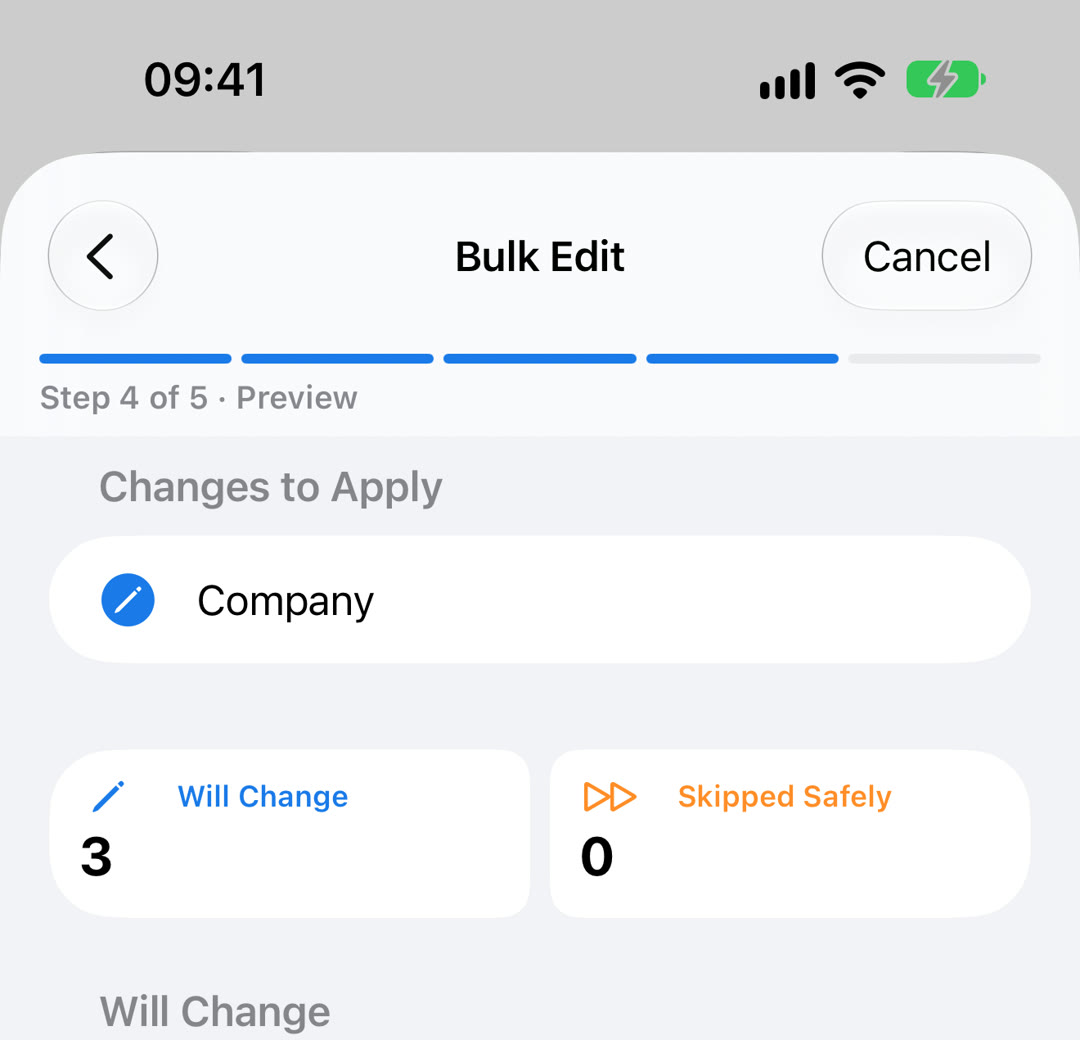
The wizard has five steps: Contacts, Field, Operation, Preview, and Apply Changes. The first step lists the selection and explains that only cards with one writable source are eligible.
| Fields | Operations |
|---|---|
| Names, Company, Department, Job Title, address parts | Set value, Clear, Find and replace, Add prefix, Add suffix, Trim whitespace, Uppercase, Lowercase, Capitalize words |
| Email addresses, phone numbers, URLs, relationships | The same, plus Add labeled value, Remove matching values, Relabel matching entries, Remove duplicate values |
| Birthday | Set value (with or without the year) or Clear |
| Groups | Add to groups, Remove from groups, Replace groups, Clear |
Important: Find and replace can use a regular expression. For safety, risky patterns are blocked and patterns are limited to 256 characters.
Read the preview
Tap Add Change and Preview. Two tiles show how many contacts Will Change and how many are Skipped Safely. Each contact shows the old value struck through and the new value beneath it.
Skipped cards keep a reason: Read-only source, Multiple linked sources, Already has this value, Groups belong to another account, or Would create an empty contact. To change several fields in one run, tap Add Another Change.
Save the recovery file, then apply
- Tap Save Recovery vCard. The app saves the current version of every affected card to a .vcf file and reads it back to verify it.
- Tap Apply Changes. Confirm the count. Each card is rechecked; if one changed after the preview, you are asked to review again.
- Check the result. A message confirms how many contacts were updated. Open one or two to check.
Important: Bulk Edit has no automatic Undo. To roll back, open the recovery vCard in Contacts; importing it can create duplicates, so restore only what you need.
Questions people ask
Can I undo a bulk edit on iPhone?
Not with one tap. The recovery vCard saved before applying holds the old versions of the affected cards, so you can restore from it manually.
Why were some contacts skipped?
Each skipped card shows its reason. Most often the card is in a read-only account, is linked to cards in several accounts, or already has the new value.
Can it reformat phone numbers?
Not in this version. It can relabel numbers, remove repeated values, and find and replace text in them.
Is this the same as on iPad?
Yes. iPhone and iPad share one app and the same Bulk Edit rules.