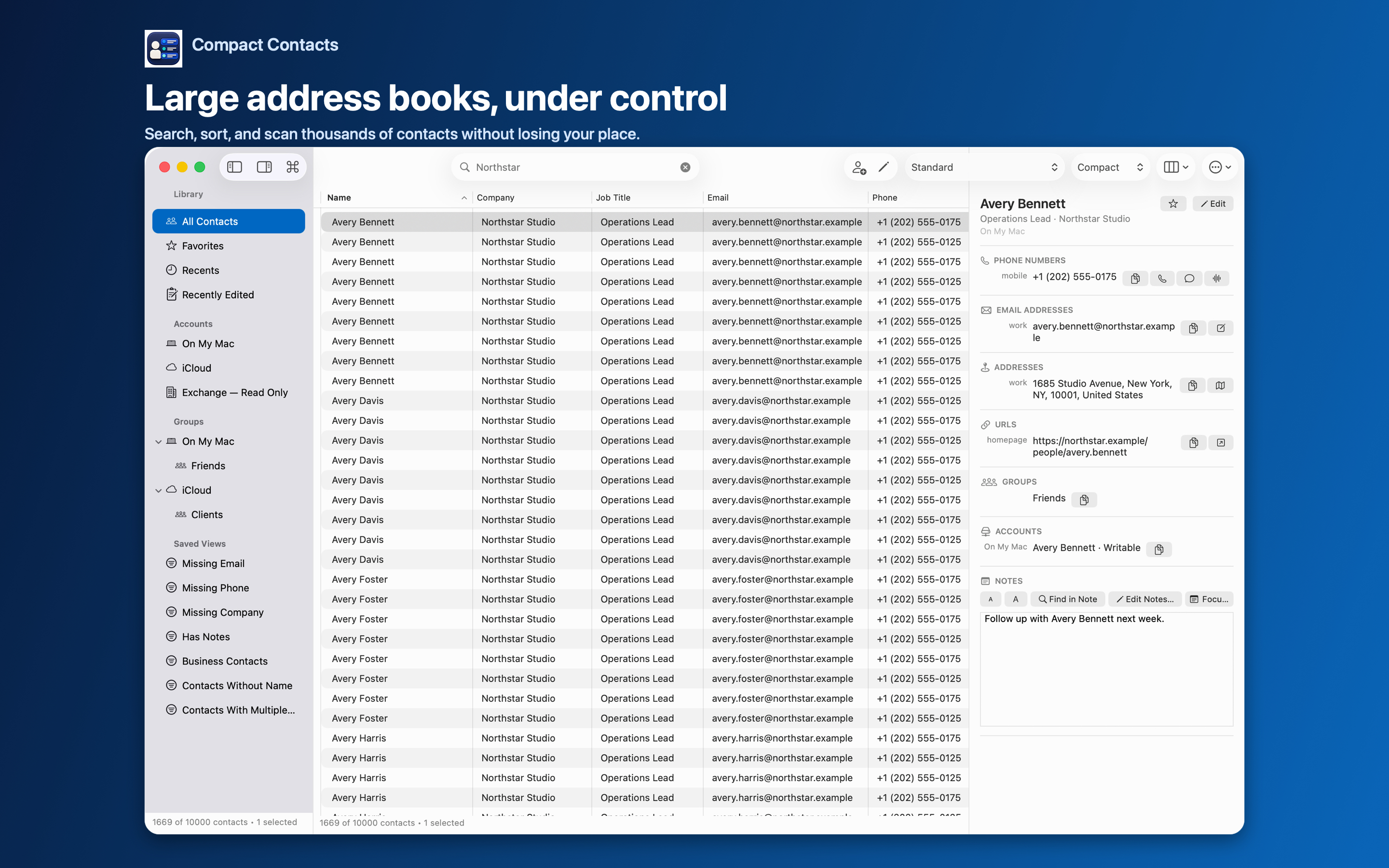
Groups are the oldest way to organize Apple Contacts: Clients, Family, a conference, a school class. They sync through the account that owns them, so the same group appears on your iPhone and iPad.
Compact Contacts works with those native groups directly. Changes you make here are the same changes Apple Contacts would make.
Everyday group actions
| Task | How |
|---|---|
| Create a group | Contact › New Group… (Shift-Command-G) |
| Add selected contacts | Contact › Add to Group… |
| Remove selected contacts | Contact › Remove from Group… |
| Rename a group | Right-click the group in the sidebar › Rename |
| Delete a group | Right-click the group › Delete |
Groups live inside an account
An iCloud group can only contain iCloud contacts; a Google contact cannot join it. When you create a group, Compact Contacts asks which writable account should hold it, or uses the default writable account.
Exchange and some directory accounts do not support groups or are read-only. Those contacts are skipped when you add a selection to a group.
Important: Deleting a group removes the group from the system Contacts app. The contacts in it are not deleted, moved, or copied. This cannot be undone.
Keep groups meaningful
- Use a group when membership is your decision, such as “Board members.”
- Use a Smart View when membership follows a rule, such as “Company contains Northstar.”
- Review contacts that belong to no group from time to time.
Questions people ask
Will a group I create here appear in Apple Contacts?
Yes. It is a native group in the chosen account and syncs like any other group.
Can one contact be in several groups?
Yes, as long as each group is in the same account as the contact.
Can I bulk-add contacts to groups?
Yes. Select many contacts and use Add to Group…, or use Bulk Edit’s Add to groups, Remove from groups, and Replace groups operations with a preview.