You often remember the organization before the person: “the designer from Northstar,” “our contact at the bank.” Searching by company gets you there.
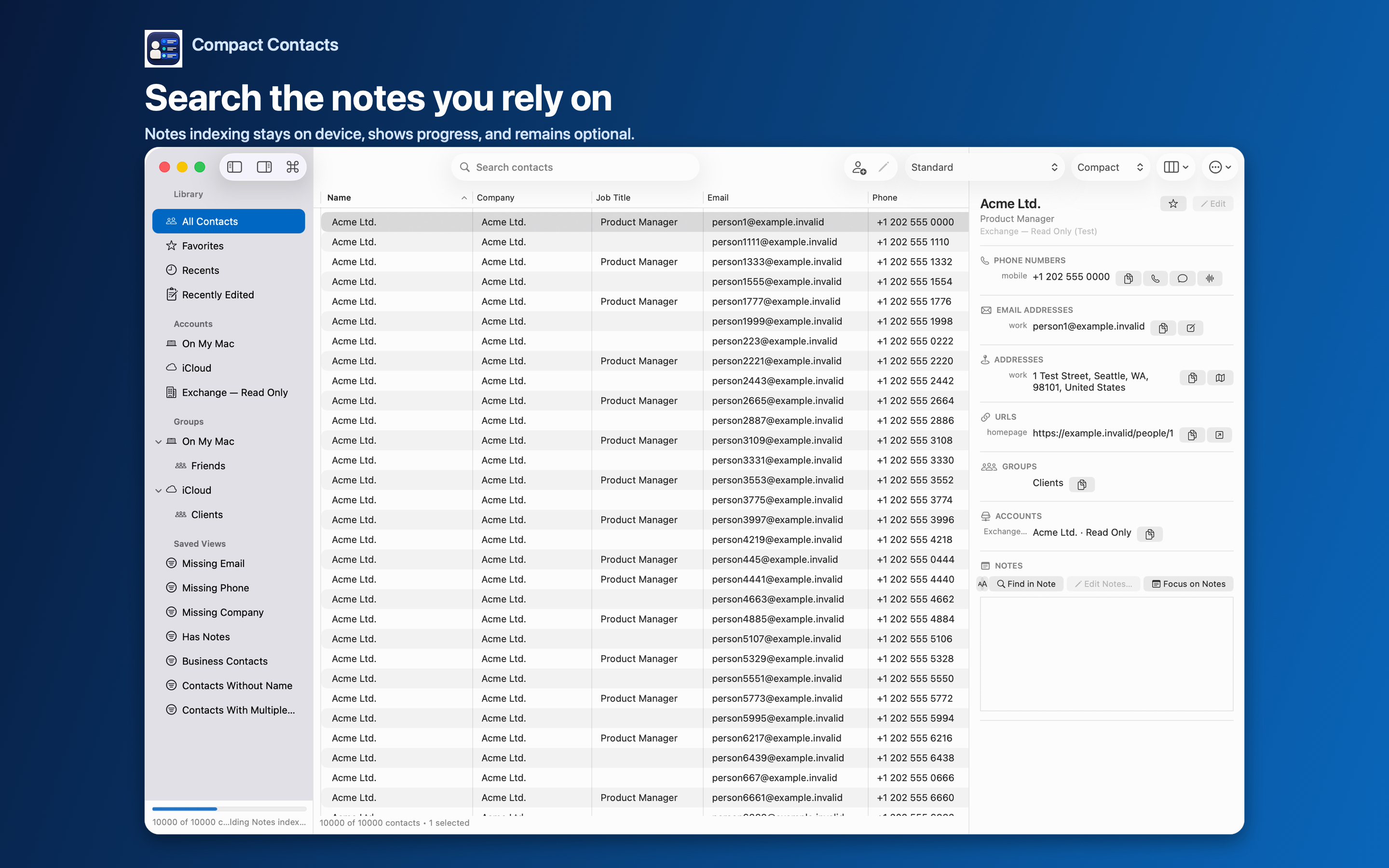
Compact Contacts searches locally across names, companies, emails, phones, addresses, and optionally Notes, and tells you which field matched.
Search and read the results
- Press Command-F. Type part of the company name. Search ignores case and accents.
- Look under Results from Company. Since 1.5, matches are grouped by field, so a company match is not mixed with someone whose Notes mention the company.
- Add useful columns. Show Job Title and Department to find the right person at the company.
Keep the answer as a Smart View
If you look up the same company often, save it: Contact › New Smart View…, Company Contains Northstar. Add Job Title Contains Design with All conditions for a narrower team view.
The built-in Business Contacts view is a starting point for everyone with a company.
Fix inconsistent company names
Sorting by Company exposes variants such as “Northstar”, “Northstar Inc.”, and “NorthStar”. Standardize them with Bulk Edit so future searches catch everyone.
Questions people ask
Does search contact any server?
No. The index is built and searched on your Mac.
Can I search by department?
Search covers organization fields; a Smart View condition on Department is more precise.
Why is the A–Z strip gone during search?
It hides while results are grouped by field and returns when you clear the search.