The iPhone Contacts list shows names and nothing else. To tell two people called Alex apart, or to see who works where, you open one card after another.
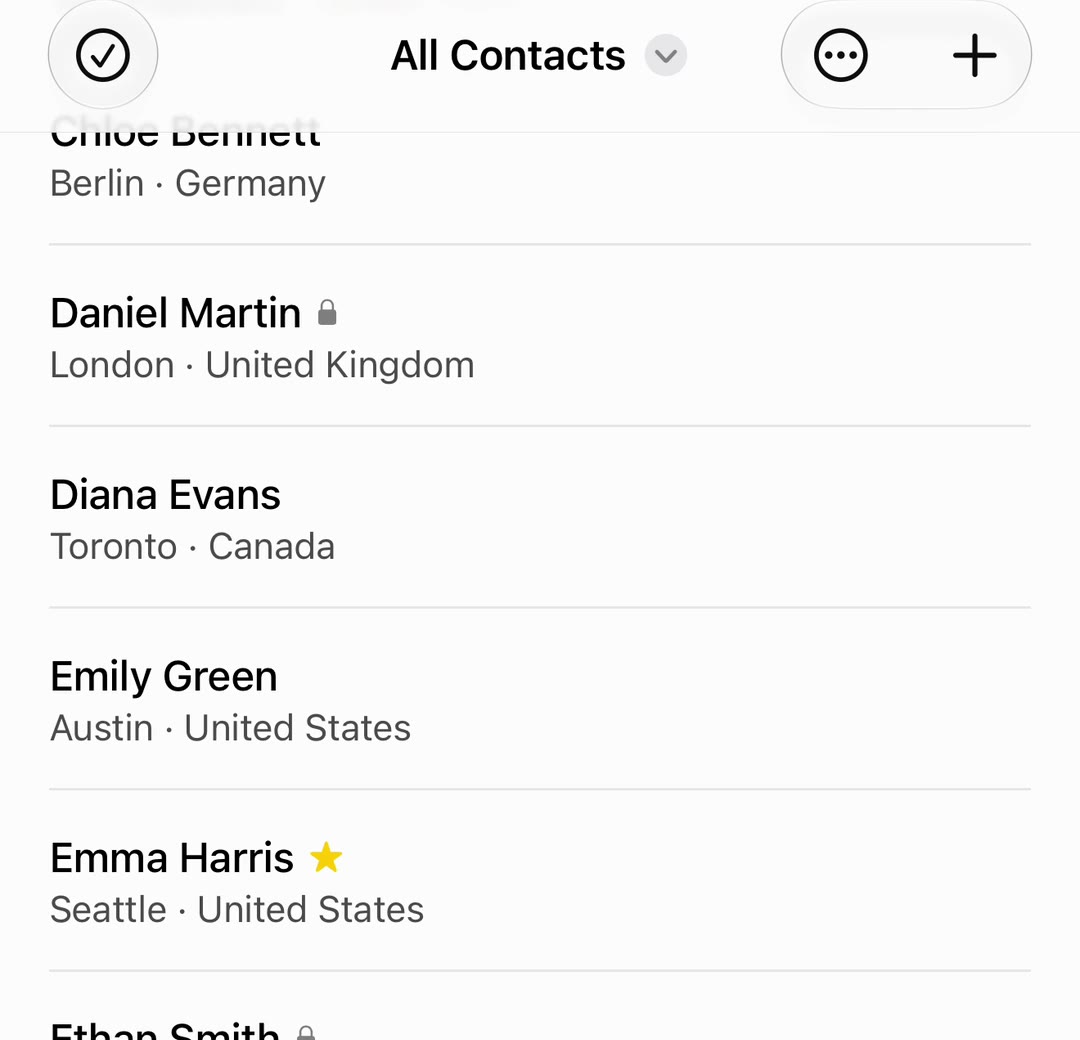
In Compact Contacts Manager every row has a second line, and you decide what it shows.
Pick a layout
- Open Fields & Layouts…. It is in the Clean Up tab under Organize, and in the More menu of the contact list. The sheet that opens is called Columns.
- Choose a layout. Standard, Minimal, Business, and Address are built in. Notes appears when the app can read contact Notes.
- Tap Save. The list updates at once. Choose another layout whenever the job changes.
Choose the fields yourself
Below the layouts, the Columns section lists the visible fields. Drag to reorder, tap the minus button to remove, and add hidden fields with the plus button. They are grouped as Identity, Organization, Communication, Addresses, Dates & Relationships, and Contact, plus any custom labels found in your contacts.
In portrait, a row shows the name and the first two fields from that list, joined with a dot. Empty values are left out. If none of the fields apply, the row shows the company.
- Company and Job Title: who someone is at work.
- City and Country: where people are, useful before a trip.
- Account: which cards are in iCloud, Google, or Exchange.
- Phone or Email: check the value without opening the card.
Important: Name a custom set of fields under Layout Name and tap Save Layout… to keep it. Smart Views can have their own layout, so a cleanup view can show different fields from your everyday list.
Turn the phone sideways for a table
In landscape, the list becomes the same multi-column table as on iPad, with every field in your layout as a column. Turn back to portrait for the list.
Sorting and letters
- More › Sort By orders the list by Name, Company, Job Title, Email, Phone, Work Phone, City, or Account, ascending or descending.
- More › Alphabetical section headings adds A–Z headers when the list is sorted by name.
- More › Letter navigation adds the A–Z strip on the right edge for lists longer than 12 contacts.
- Density (Compact, Comfortable, or Large) is at the bottom of the Columns sheet.
Questions people ask
Does this change my contacts?
No. Layouts only change what the app shows. The cards in Apple Contacts stay as they are.
Why does a row show only two fields?
An iPhone row has room for one extra line. Turn the phone to landscape to see every field in your layout as a column.
Do layouts sync to my iPad or Mac?
No. Layouts and Smart Views are stored in the app on each device. Your contacts themselves sync through your account as usual.